Guide
Install thebrowser extension.
About five minutes, once per computer. After that the extension reads your station’s roster from Amazon by itself.
Before you start
A computer, Chrome,and both sign-ins.
The extension runs in Google Chrome 116 or newer on a desktop or laptop. It does not run on a phone or tablet. Not sure which version you have? See Which browser to use, under Resources.
It reads your station’s roster from the Amazon session already open in your browser, and sends it to Alakili. So the browser needs to be signed in to both.
- Google Chrome 116 or newer, on a computer.
- An Alakili account for your organization.
- Access to your station on Amazon’s logistics portal.
Step 1
Download the extensionand unzip it.
Press Download the extension at the top of this page. Unzip the file into a folder you will keep, such as Documents/Alakili extension.
Chrome runs the extension from that folder. Leave it where it is: if the folder is moved or deleted, the extension stops working.
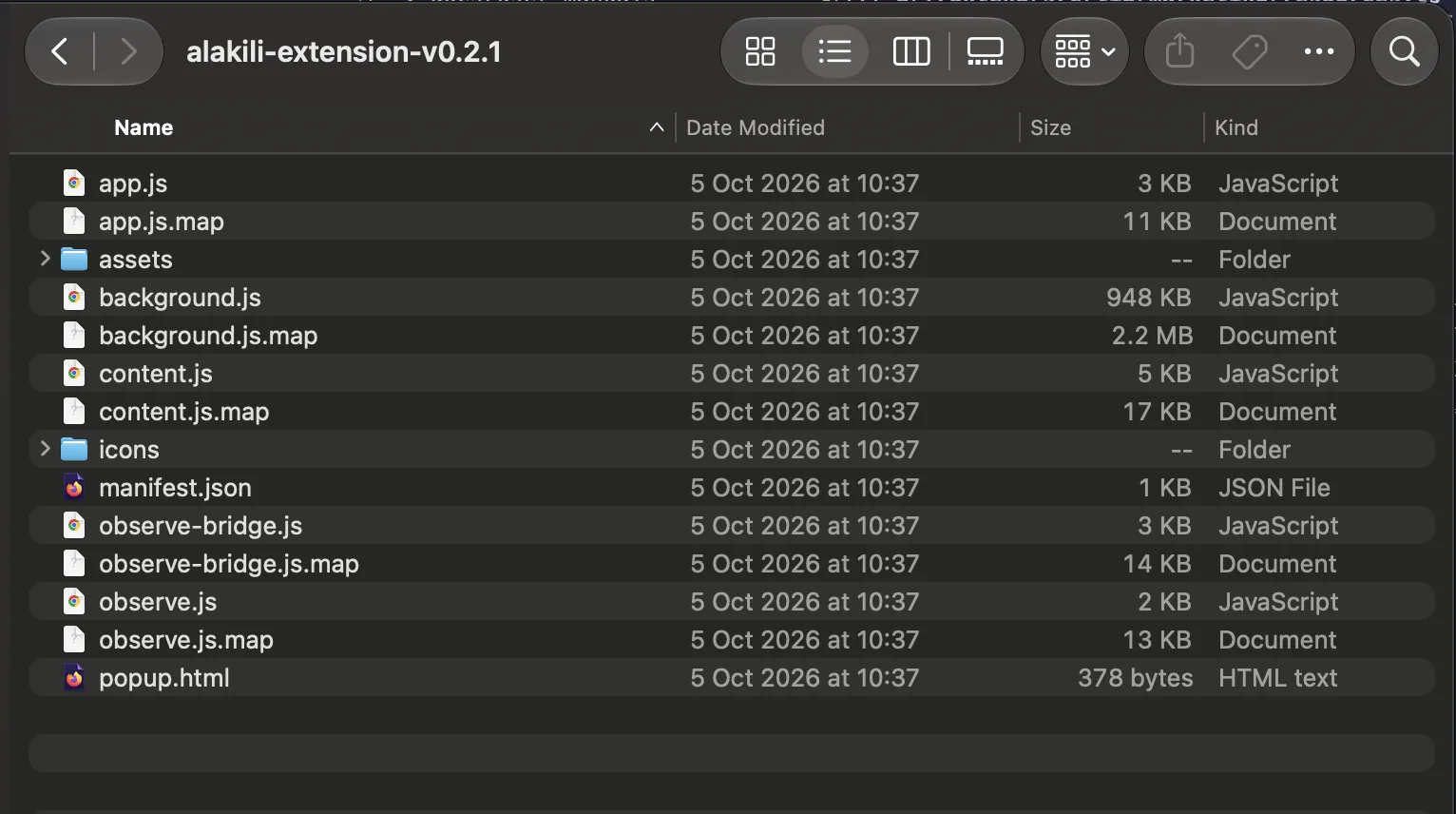
Unzip it first. Chrome cannot load the extension straight from the .zip file.
Step 2
Turn onDeveloper mode.
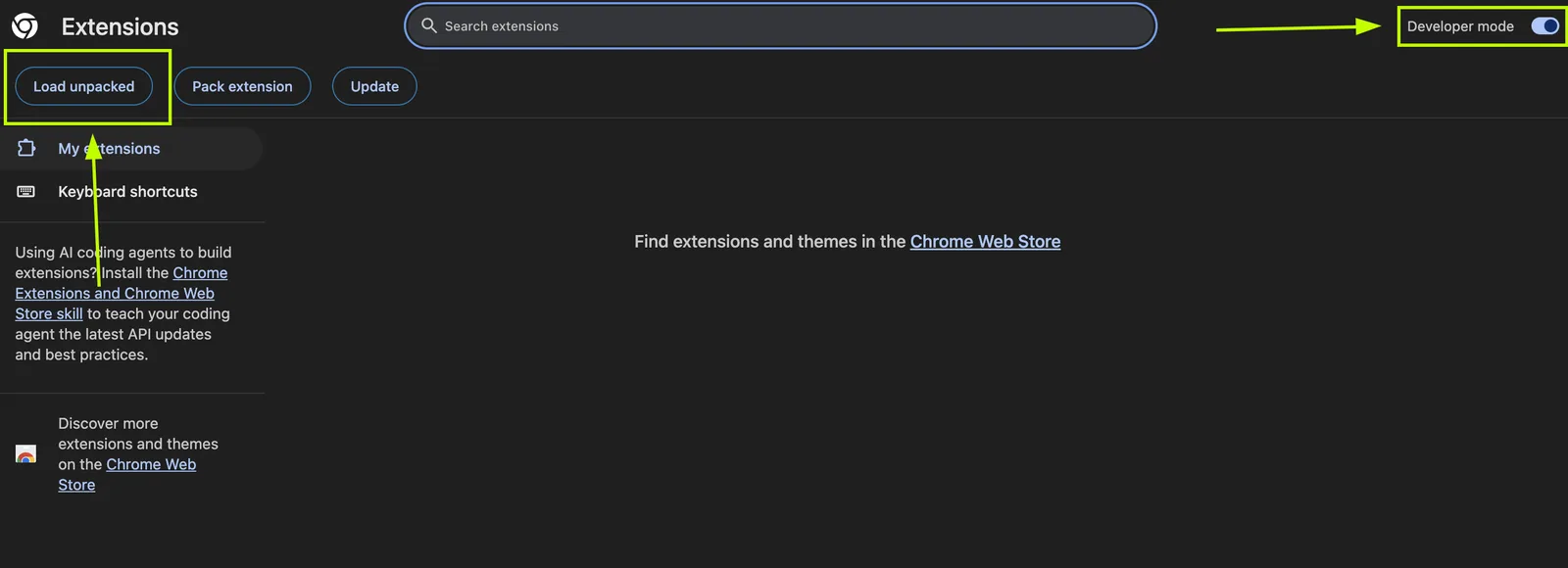
In Chrome, type chrome://extensions into the address bar and press Enter. In the top right corner, switch on Developer mode.
Three buttons appear along the top of the page. You need the first one, Load unpacked.
Step 3
Load the folderyou unzipped.
Press Load unpacked and choose the folder from Step 1: the folder that has manifest.json in it, not a folder above it or inside it.
Alakili appears in your list of extensions, switched on.
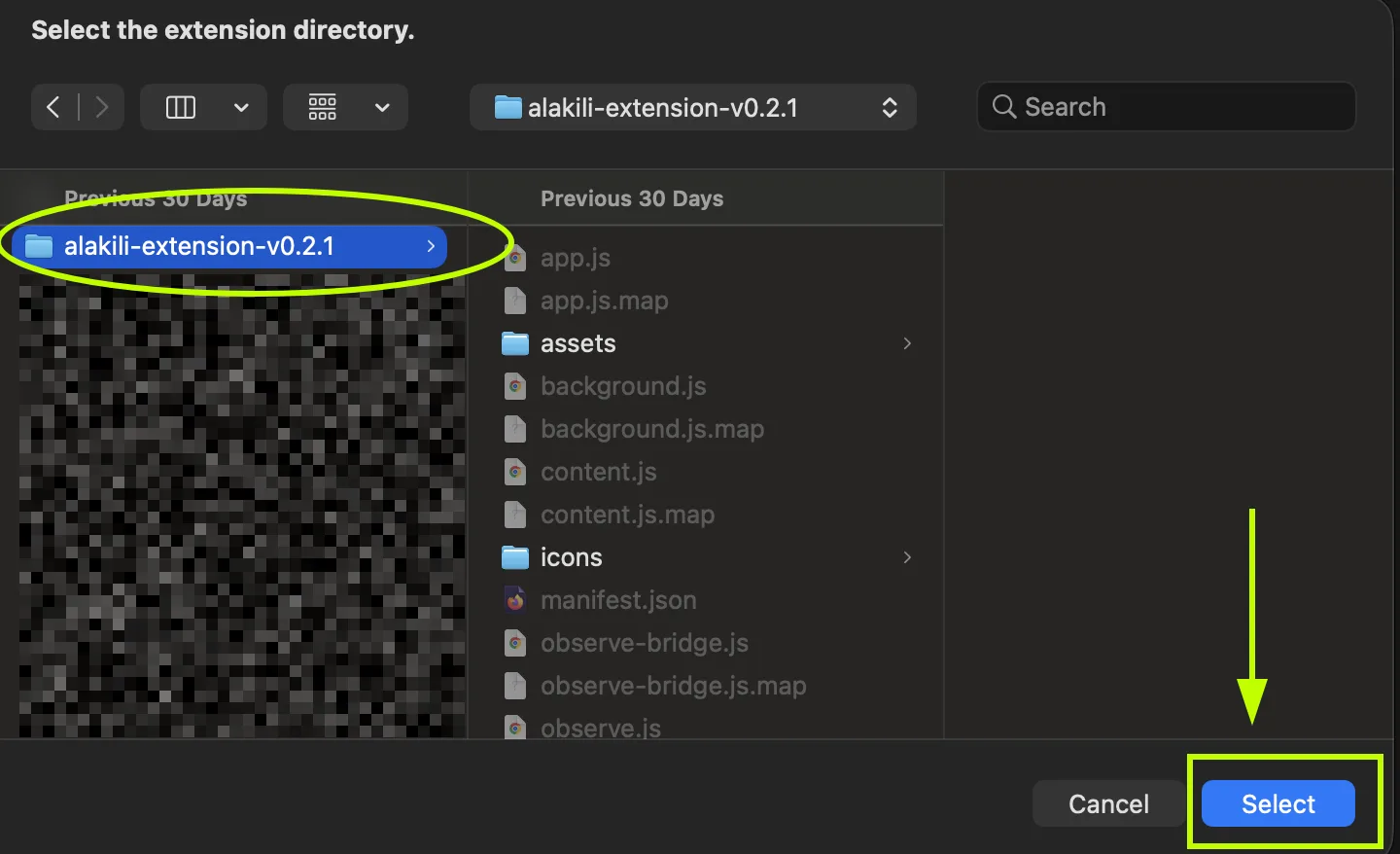
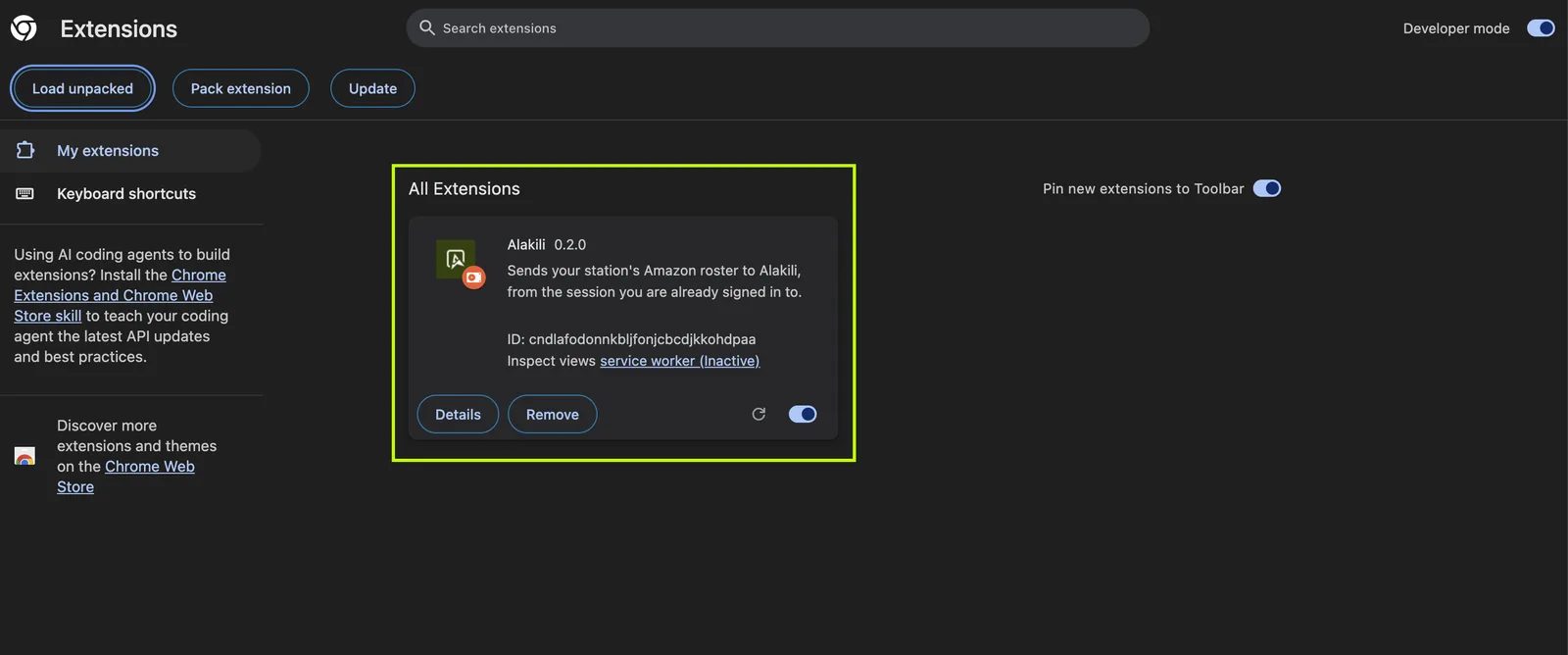
Chrome says “Manifest file is missing or unreadable”? You picked the wrong folder. Pick the one that has manifest.json directly inside it.
Step 4
Pin it toyour toolbar.
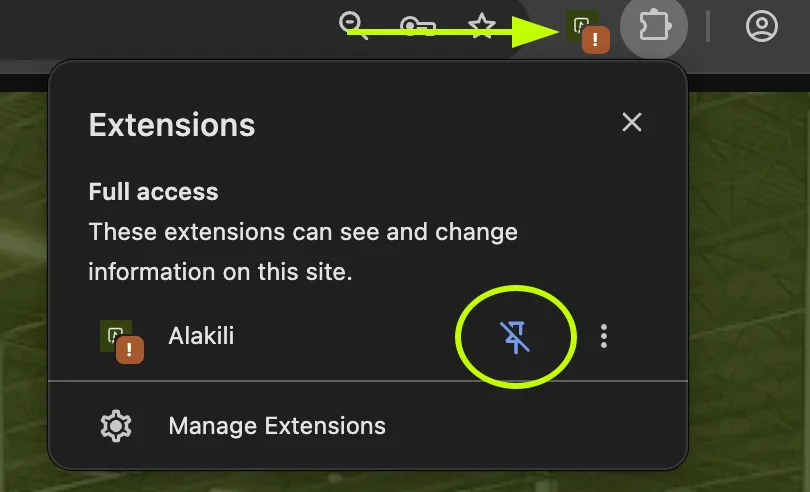
Press the puzzle piece to the right of the address bar, then the pin next to Alakili. Its icon stays on the toolbar, one click away.
Step 5
Sign in, then openyour Amazon schedule.
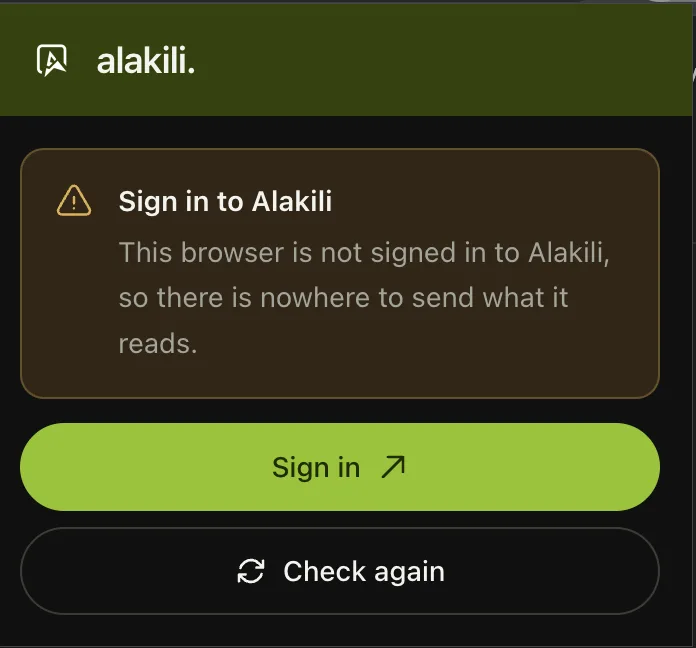
Sign in to Alakili in this browser. Then open your station’s schedule on Amazon’s logistics portal in another tab, and leave that tab open.
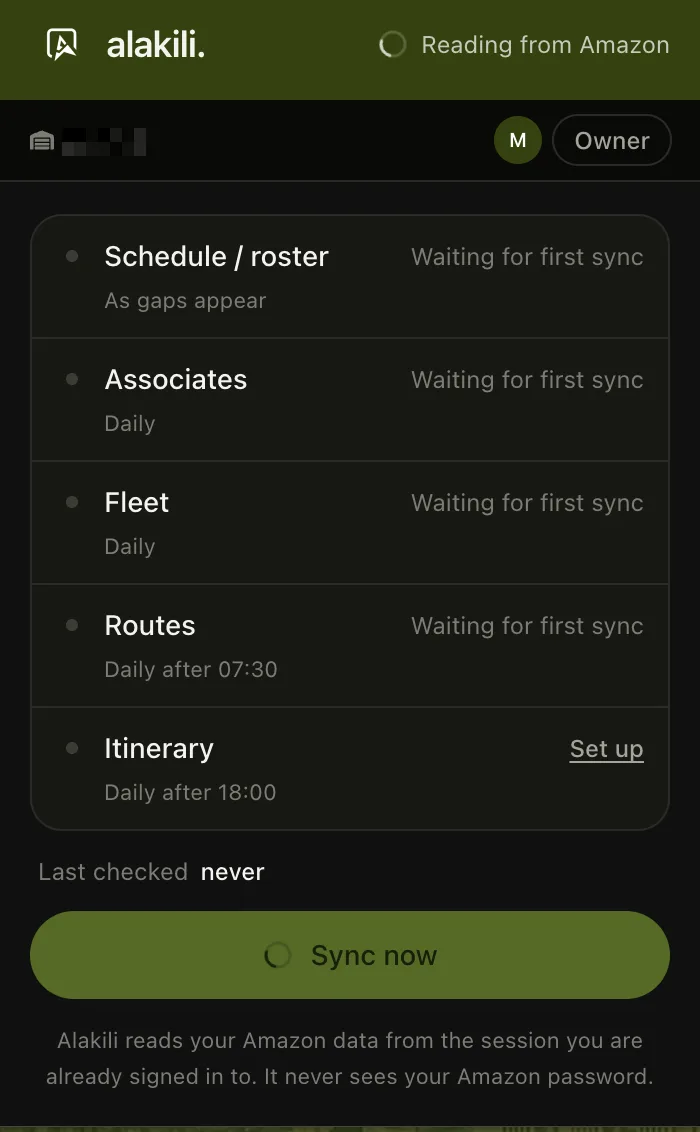
Press the Alakili icon. The extension says which step is still missing, such as Sign in to Alakili or Open your schedule in Amazon, and links to it. Once both are done, it shows your station and starts reading.
Keeping it up to date
A new version isone download away.
When we let you know about a new version, download the extension again and unzip it over the folder from Step 1, replacing what is there. Then open chrome://extensions and press the reload arrow on the Alakili card.
Replace the folder’s contents instead of removing the extension. Removing it means loading it again from the start.
See it against your own company data.
Thirty minutes. We walk your operating day, then come back with the configuration rather than a quote for a rebuild.